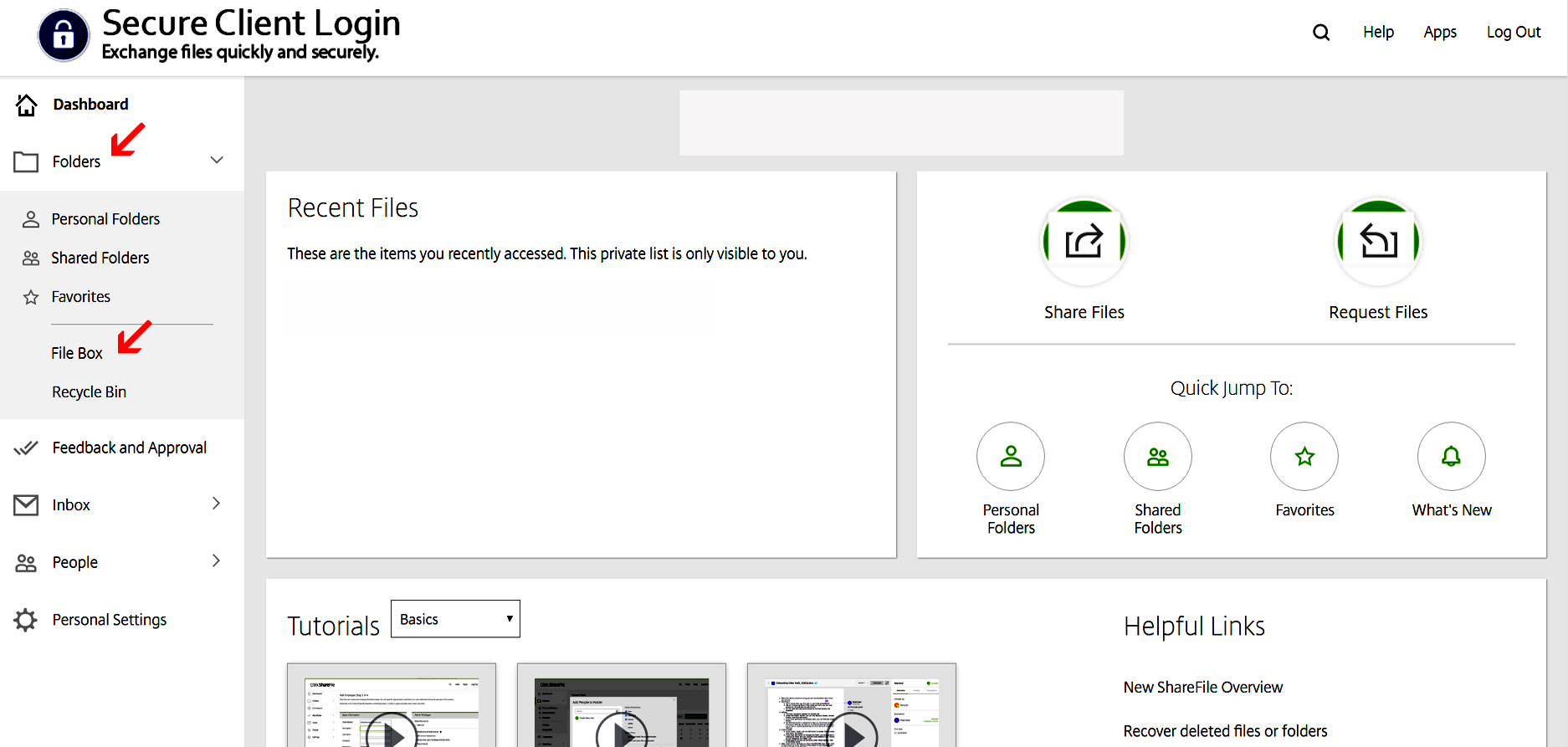
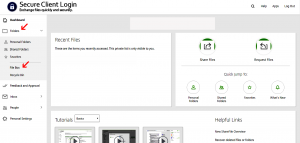
To log into your portal, click here or select the ‘Client Portal’ tab on your website. If you do not already have a portal account, please email us at support@getnetset.com to request one. If you’ve forgotten your password, you may click here to reset it.1. Click on ‘Folders’ and then click on “File Box” to enter the File Box folder.
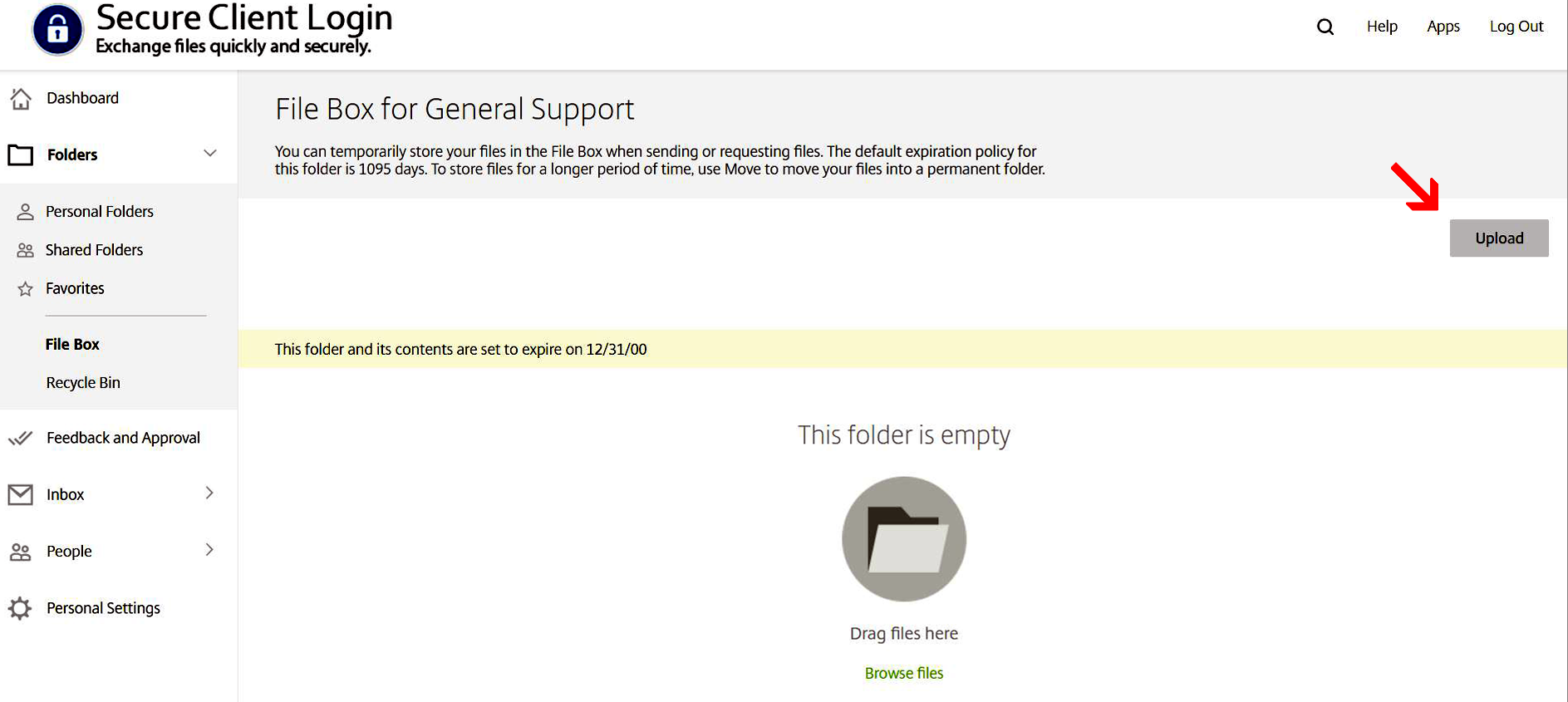
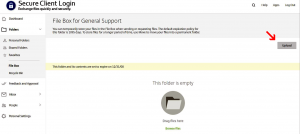
 2. Click the “Upload” button.
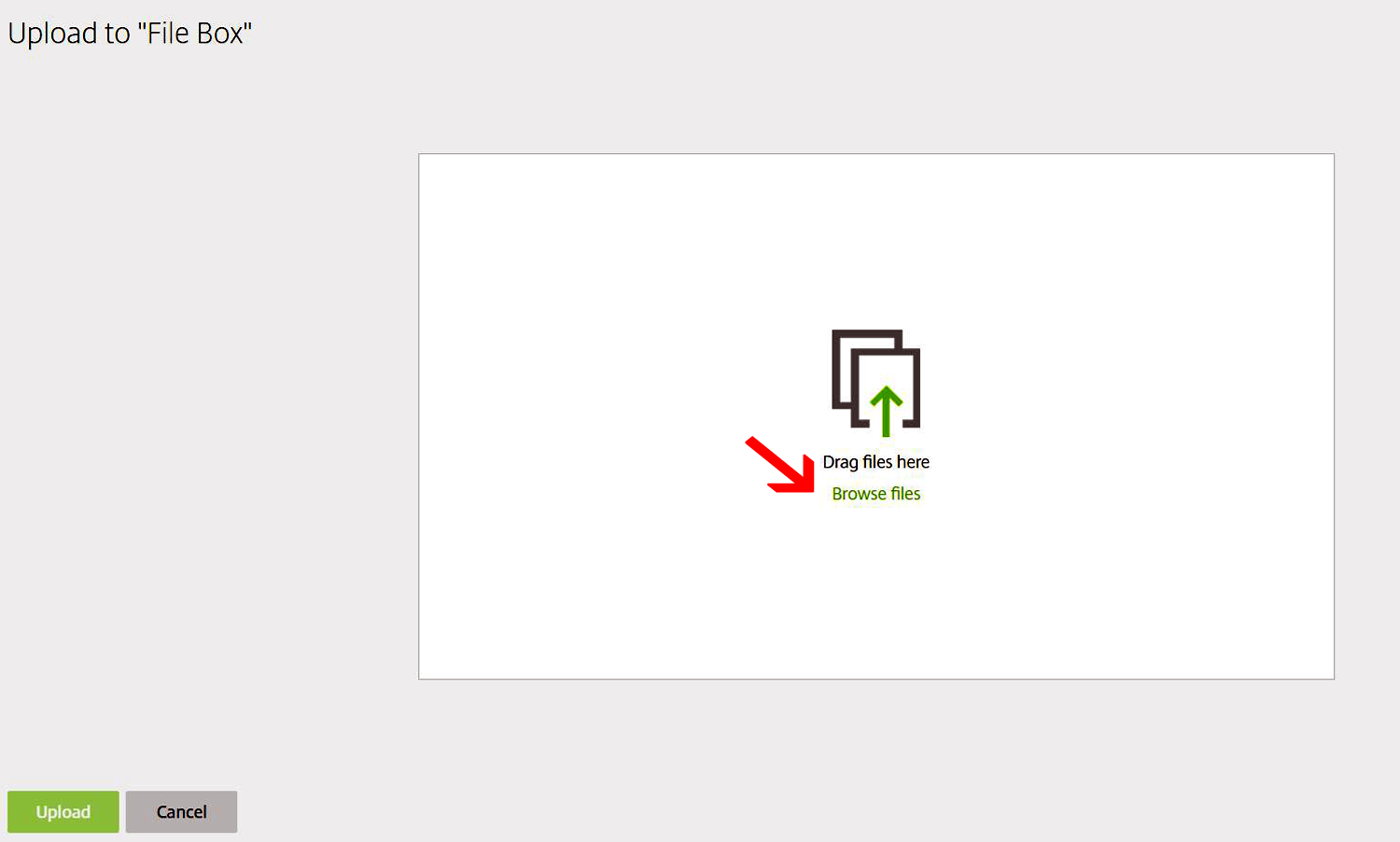
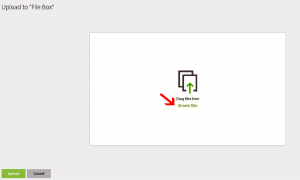
 3. Drag and drop, or click “Browse Files” and select the files that you want to send.
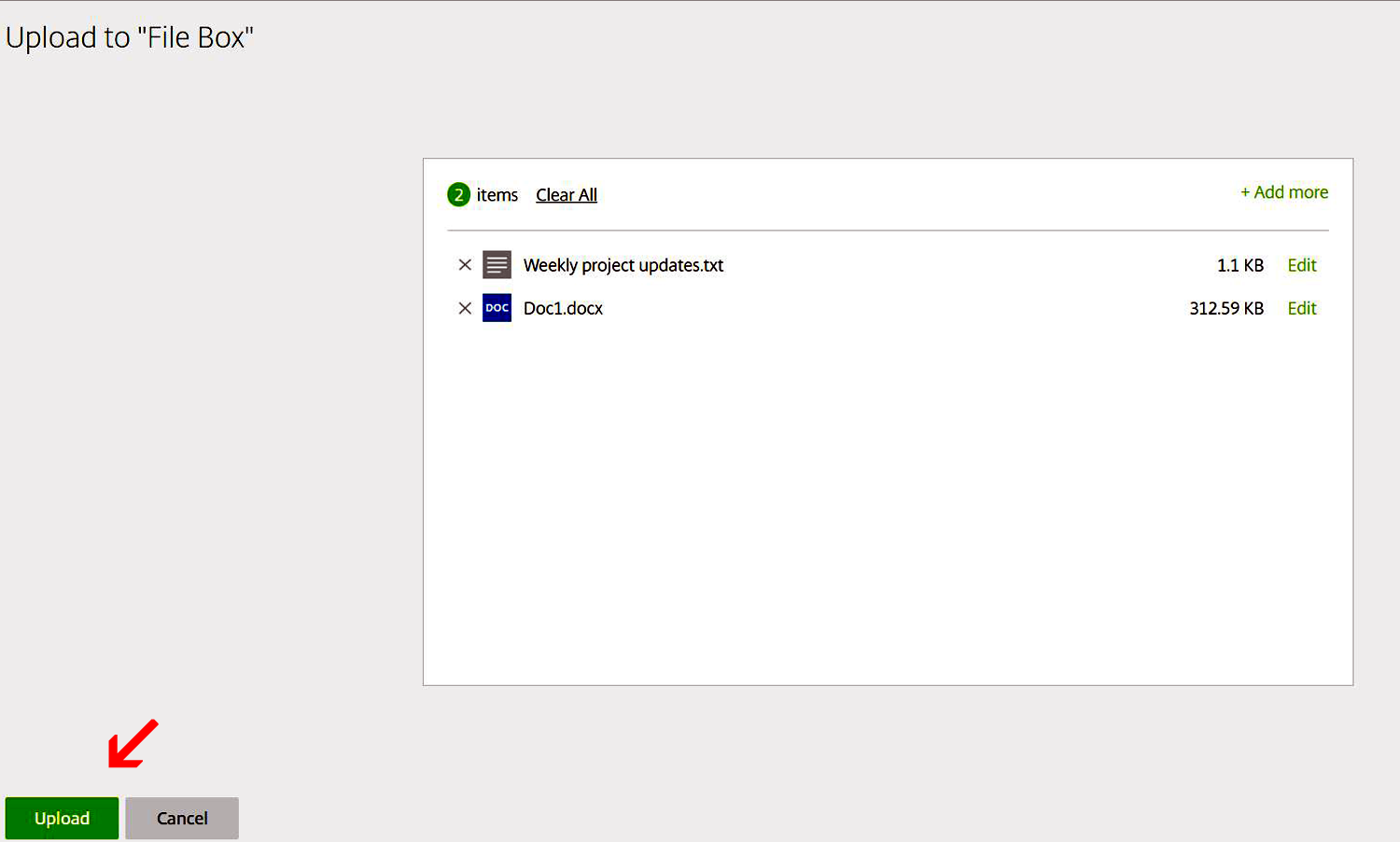
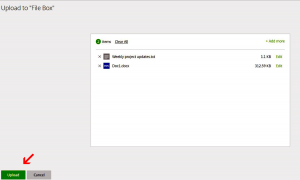
 4. When your list of files is complete, click ‘Upload’ and be patient as your files are uploaded.
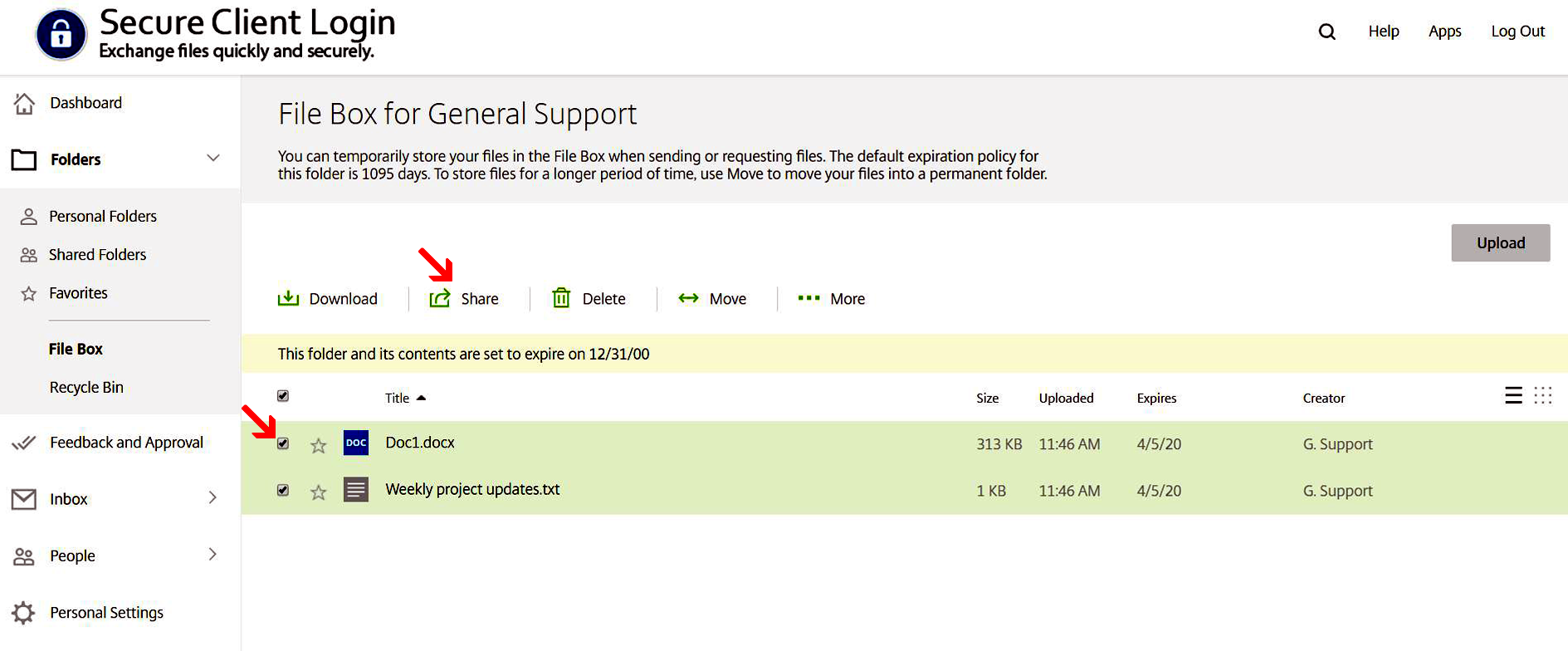
 5. When uploading is complete, select the checkboxes for the files that you want to share and hover your cursor over “Share”. (The “Share” option will not be visible until you begin selecting files.)
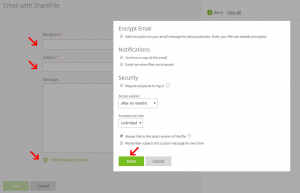
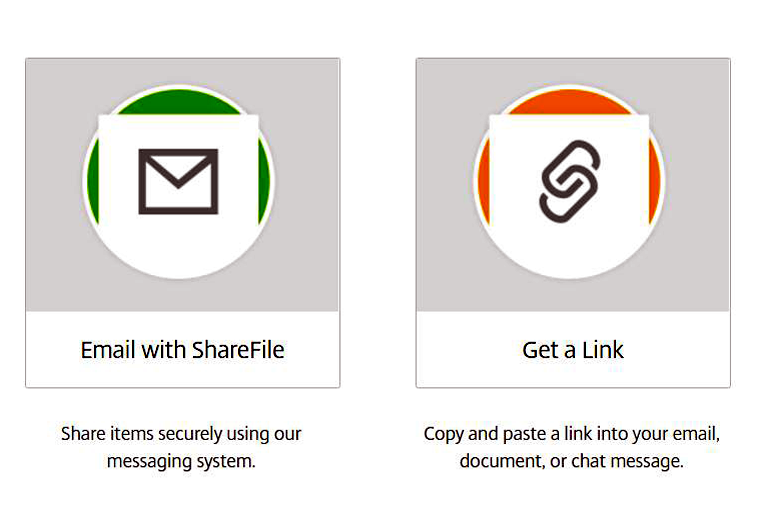
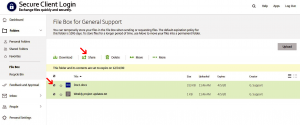 6. The “Get a Link” option provides a link that you can send to the other party through your regular email. The “Email with ShareFile” option lets you immediately send the download link directly from your portal.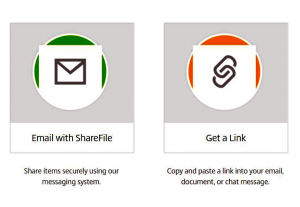
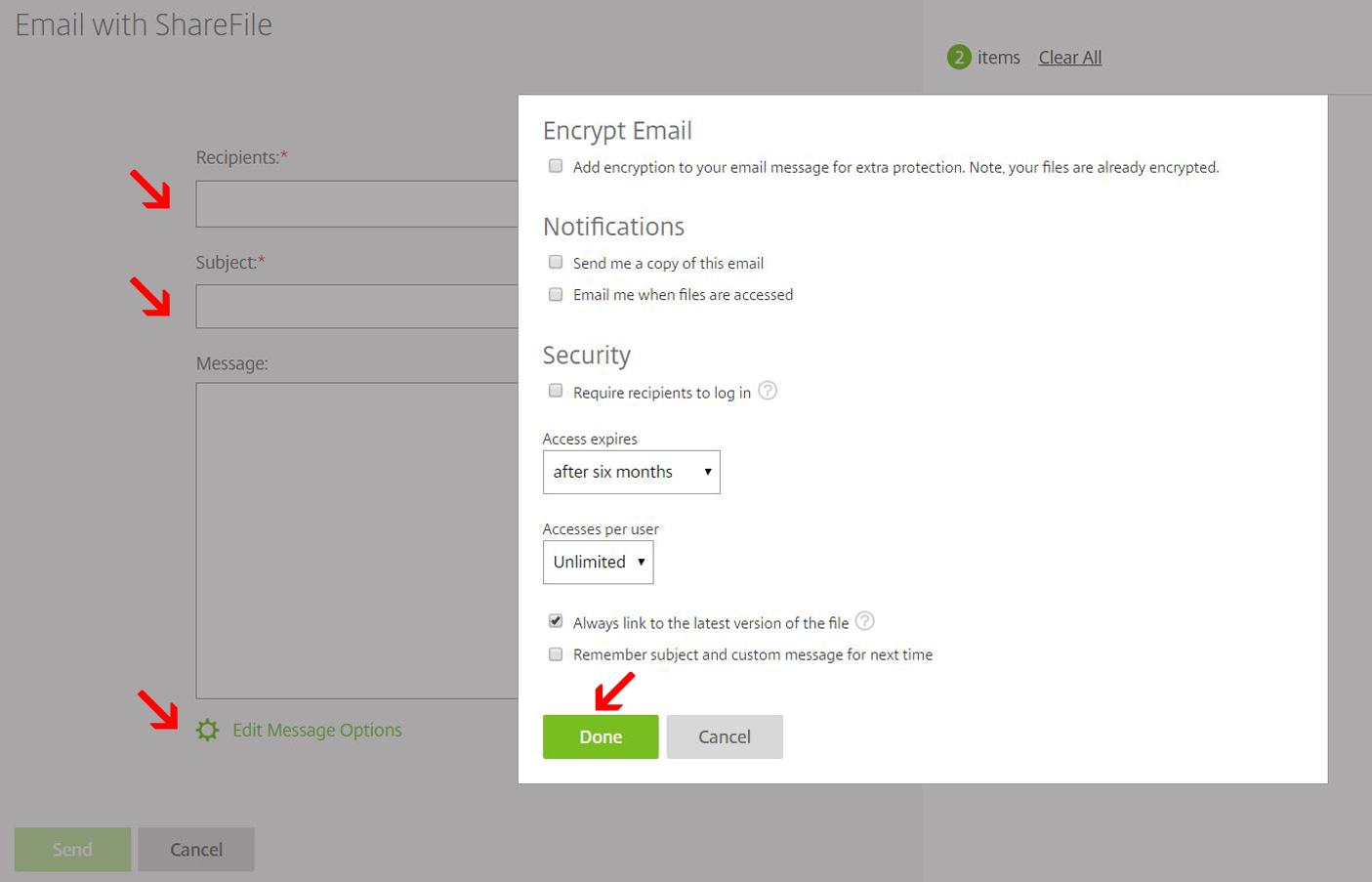
7. Here is what the “Email with ShareFile” screen looks like: